Firebase App Distribution is a service that allows developers to share pre-release versions of their mobile apps with testers before public launch.
This guide will help you get started with testing apps available to you as a tester. Please note that you need a Google account to use App Distribution. Make sure you have your Android or iOS device ready. We’ll first cover the steps for Android devices, with iOS instructions to be added in a future update.
Getting started on Android
Enabling Installation from Unknown Sources
Before we begin, we need to configure your Android device to install apps from sources other than the Google Play Store. In this case, the source will be your phone’s internet browser. This is necessary because we’ll be installing an app called “App Tester,” which helps you seamlessly receive updated versions of the apps you’re testing through App Distribution.
Follow these steps to allow installation from unknown sources:
- Go to Settings > Apps & notifications.
- Tap Advanced > Special app access > Install unknown apps.
- Select your browser application (e.g., Chrome).
- Toggle “Allow from this source” to ON.
- You might be presented with a few screens requesting that you confirm the operation.
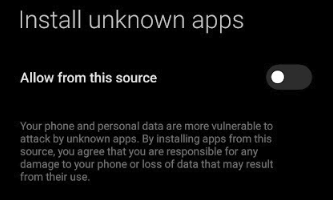
Once that is done, we are ready to move forward.
Accepting the Invitation to Become a Tester
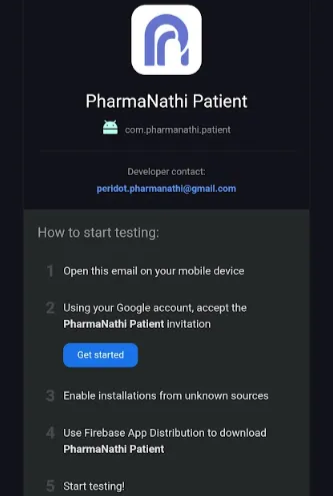
Once you’ve been invited to test an app via Firebase’s App Distribution, you’ll receive an email similar to the one shown here.
Click the Get Started button in the email to open the invitation page.
Sign in with your Google account if prompted
Instead of downloading the app directly, click the Download App Tester button at the bottom of the page
This helper app will allow you to manage different versions of the apps you’re testing more easily.
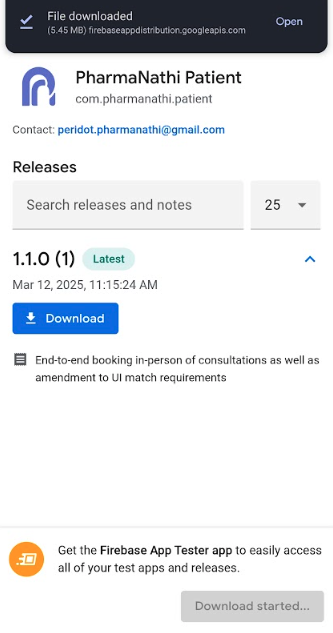
Once the download completes, run the file to install App Tester
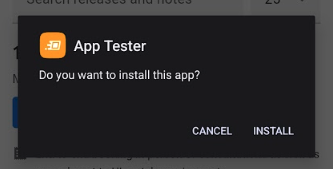
App Tester should launch automatically after installation

Sign in with the same Google (Gmail) account that received the testing invitation
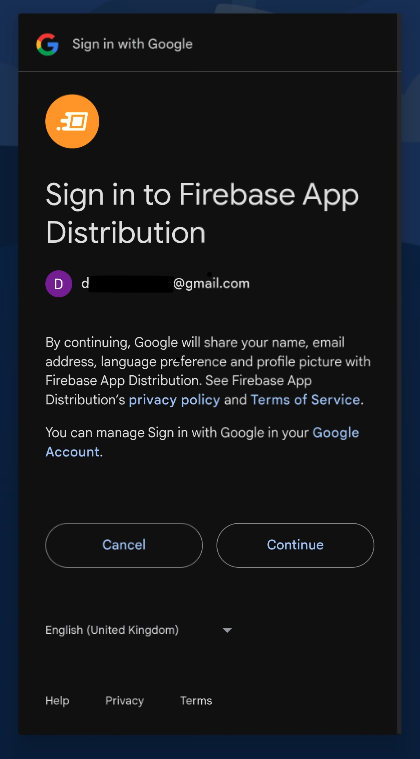
Next:
- Click Continue and grant the necessary permissions
- Continue through the setup screens until you reach the list of apps available for testing This list shows all apps your account has been invited to test.
Installing and Testing an App
- Click on the app you wish to install and test
- Consent to sharing basic information with the app’s developers
- Click START TESTING ON THIS DEVICE
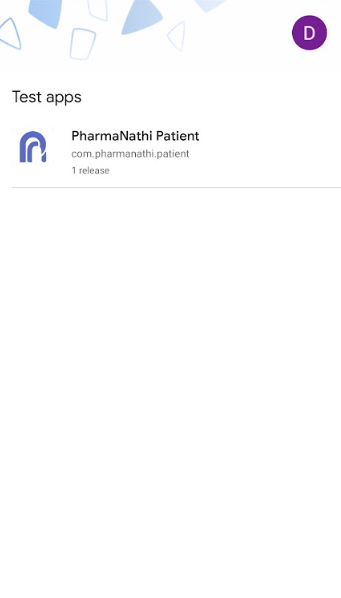
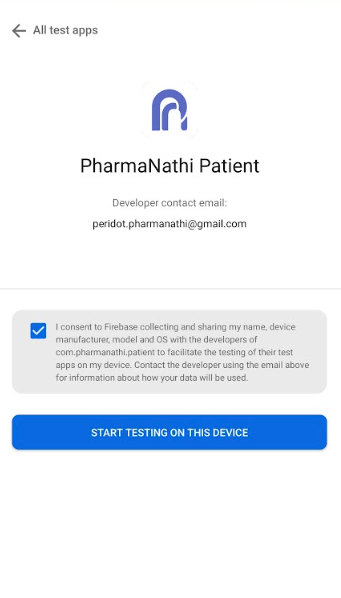
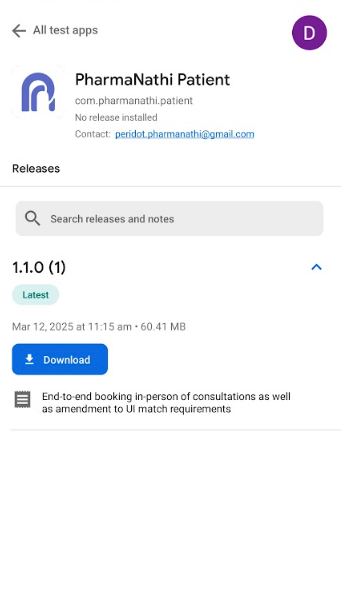
- The next screen will show all available versions of the app
- Each version may include release notes and other information
- Select the version you want to install and click the Download button
- You’ll be prompted to allow installing apps from App Tester as an unknown source. We did the same thing earlier with your internet browser application.
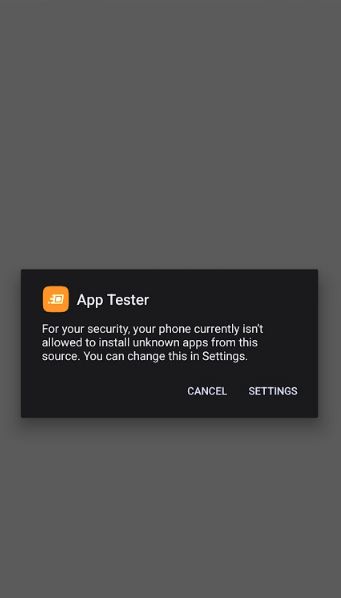
Click on Settings to access the screen where you allow installing from this source. This will allow installing any other app and their versions from App Tester.
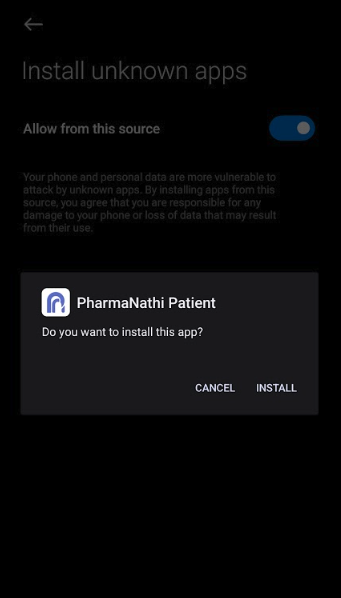
A final confirmation dialog will appear – click Install to complete installation
The app should automatically launch after installation. Otherwise, find it in the list of installed apps in your phone.
Managing Future Updates
That’s it! Now you’re all set up as a tester. For future invitations or app updates:
- New test invitations will be more streamlined since you’ve already set up App Tester
- When an app you’re testing receives an update, open App Tester to see and download the latest version
- You can manage all your test apps from the App Tester application
Providing Feedback
As a tester, your feedback is valuable to the development team. Consider sharing:
- Screenshots of any issues you encounter (Power + Volume Down on most Android devices)
- Specific steps to reproduce problems
- Your overall experience with the app’s functionality
Contact the development team through their preferred communication channel with your feedback.